Precise edits
Direct the change, one frame at a time.
Get the results you want. EVERYTIME
Precise AI video editing for the take you meant to make.
Refine unwanted details with text prompts and object layers, then guide a new video with frames you approve.
AI frame editing, object layers, lighting, and text in one browser workspace.
Direct the change, one frame at a time.
Give individual elements their own edit.
Give your frames a deliberate palette.
Add a message. Make the shot yours.
Refine an object.
Recompose the frame.
Make atmosphere a creative choice. Explore lighting, color, and mood as part of your visual direction for the shot.
Real edits made in Unify OmioObject layers
Omio takes a frame apart into its objects and the background. Change one layer, or all of them, and the whole clip is rebuilt from your frame.
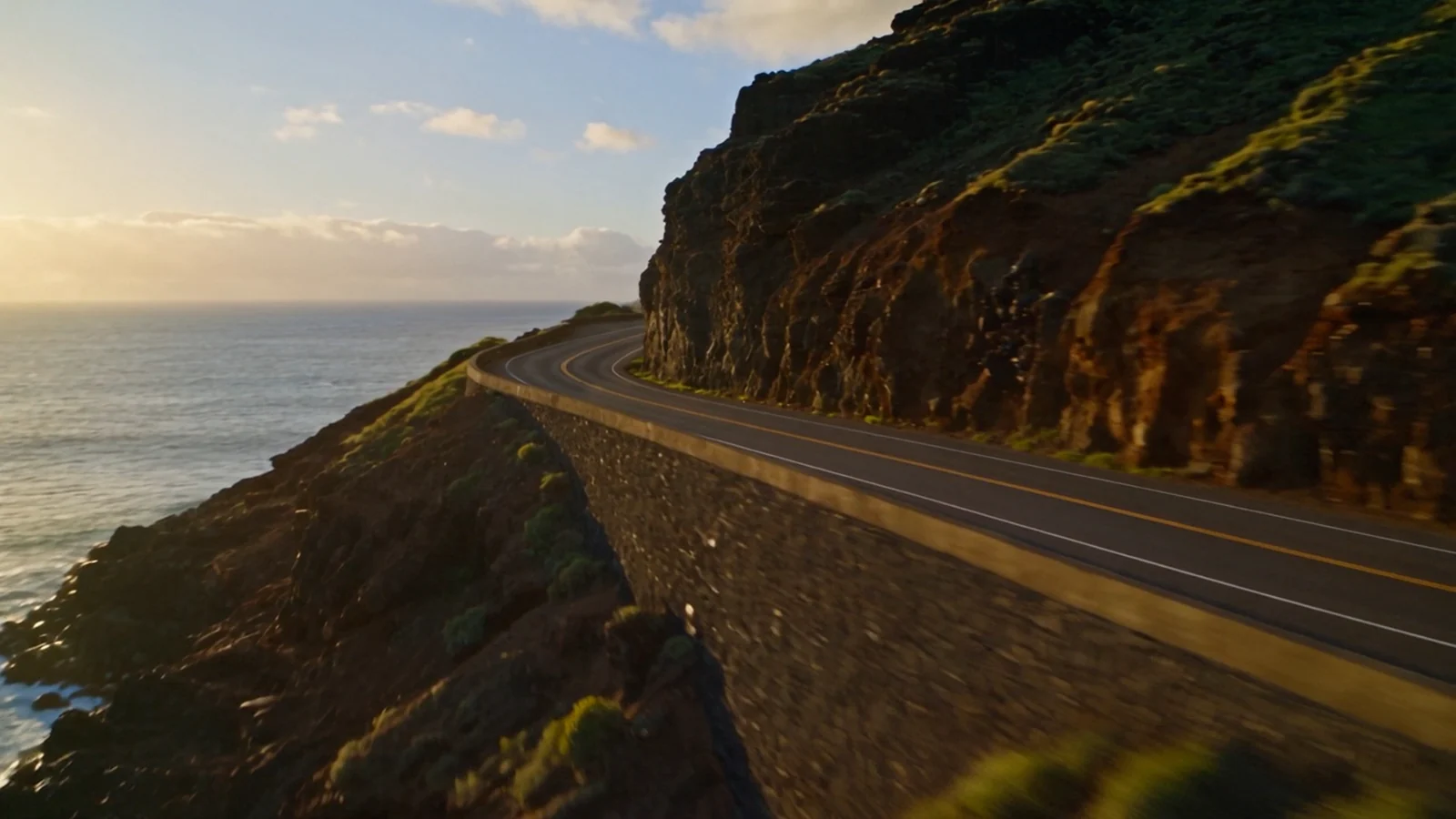
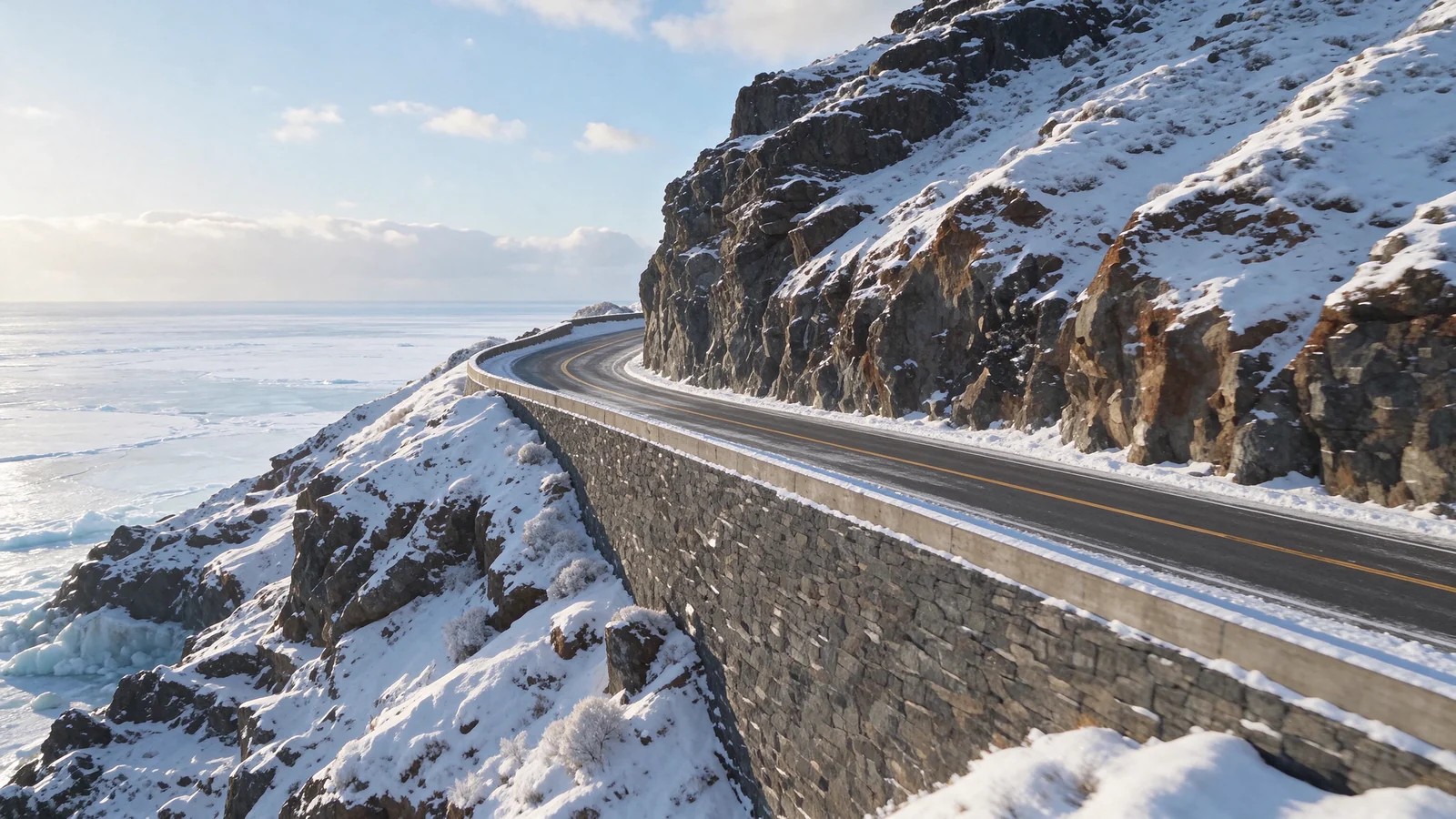 Layer 2 · Background
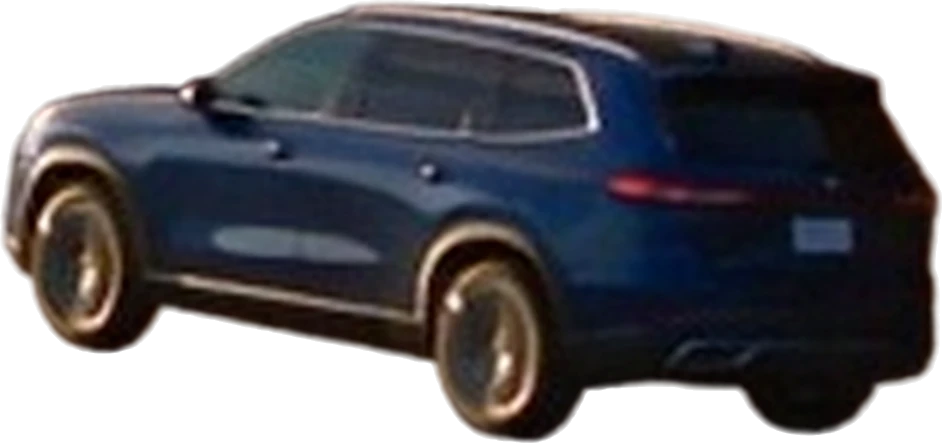
 Layer 1 · Car
One frame. Pause anywhere in your clip and open that frame.
AI video cleanup
Your idea deserves a deliberate finish. Work on unwanted objects, awkward visual details, and backgrounds that miss the brief.
Open the frame that needs attention and name the object, background, or detail you want to change.
Describe the change with a text prompt. Work with separate object layers when you need to refine an individual element.
Review the edited frames, keep the results you want, and use them as visual references when rebuilding your video.
Precise direction for the video you want to make.

Explore product colors, campaign backgrounds, and new treatments for a hero shot. Use approved frame edits to guide the next version of your video.
Explore Omio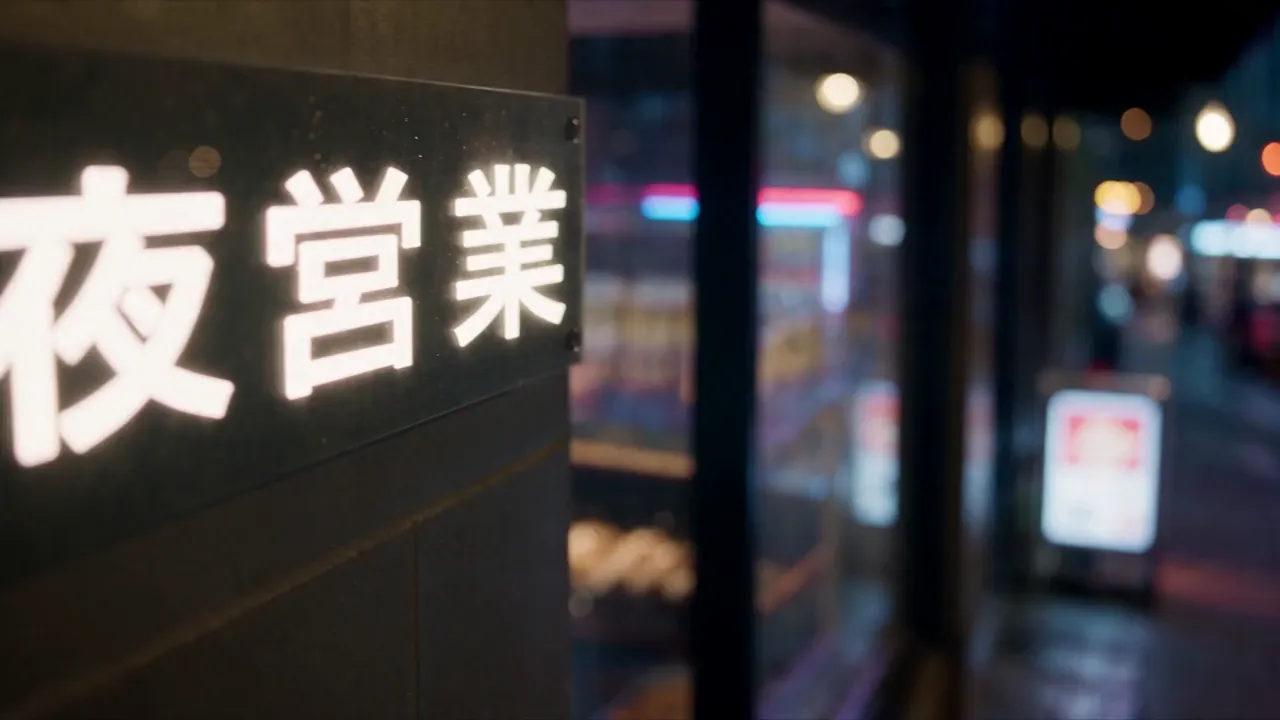
Work on the distractions that make an AI-generated shot feel unfinished. Refine selected frames, review the composition, and guide the next take with your approved edits.
Explore Omio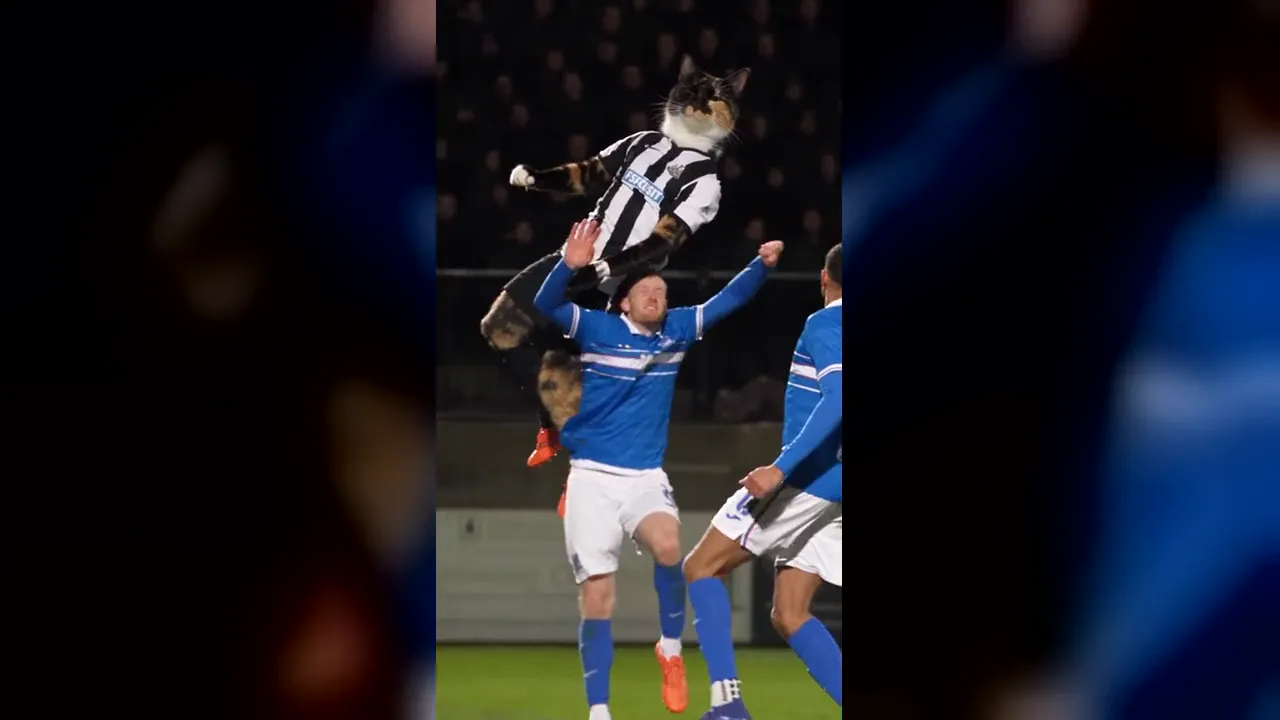
Give existing footage a fresh creative direction with AI frame edits and custom titles. Develop visual variations for your next story or campaign.
Explore Omio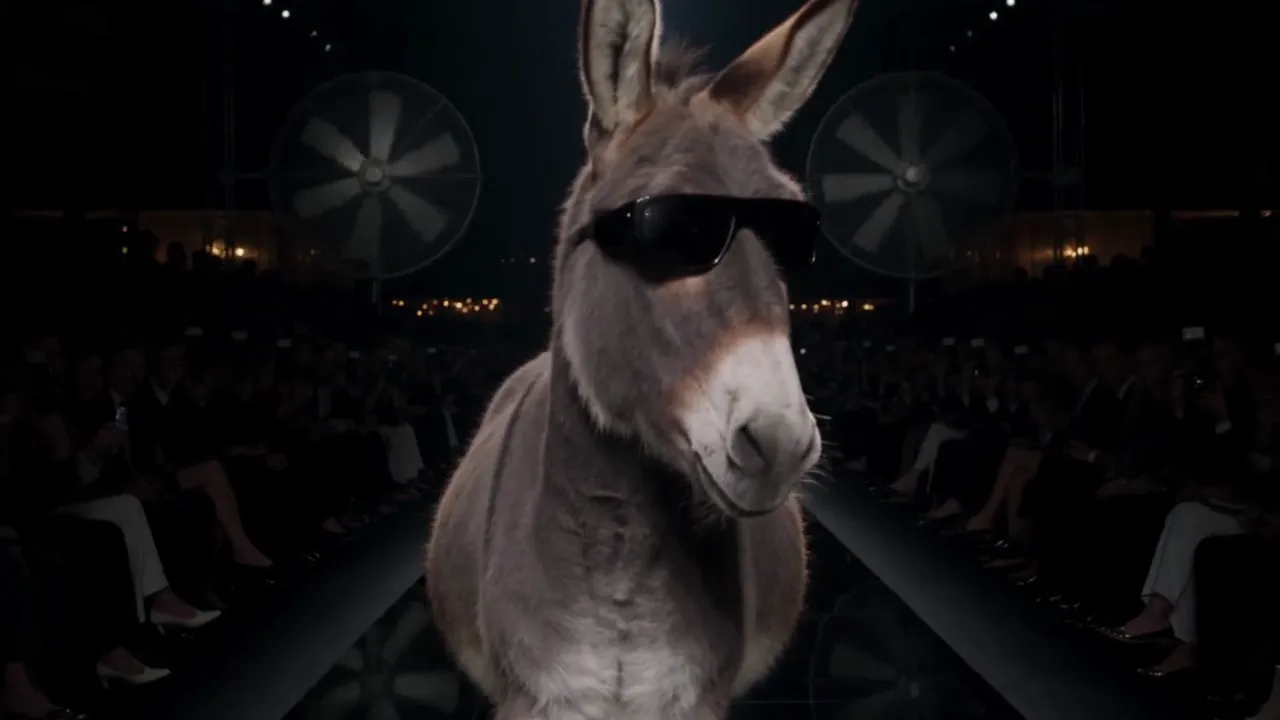
Translate creative feedback into text prompts and layer edits. Keep the frames you approve as a visual brief for the video you generate next.
Explore OmioPrecise AI video editing
An unwanted object. An awkward detail. A background that misses the brief. Describe what should change, review the AI frame edit, and use the result to guide a better take.
Precision starts with choosing what to work on. Separate a frame into object and background layers, refine the pieces, and compose the reference for your next take.
Compare the scenesRefine the shot with lighting and color controls, or describe a more ambitious change in an AI frame edit. Build a visual direction that serves your story.
Experiment with materials, clothing, and visual treatments on selected frames. Use the results you approve as references when rebuilding your video.
Omio is included with Scale and Ultra. Choose the plan for your creative work.
$49.99/mo
or $39.99/mo billed yearly
$149.99/mo
or $112.49/mo billed yearly
Prices in USD. AI frame edits, layer separation, and video rebuilding use credits. Review the cost in the editor before generating.
How text prompts, frame edits, and object layers work in Omio.
Unify Omio is an AI video editor built around precise creative direction. Work on selected frames, describe changes with text prompts, and refine objects and backgrounds on separate layers. Your approved frames become visual references for the video you generate next. Omio opens in Unify’s Live Edit workspace.
Upload a clip or choose a sample, then open the frame you want to edit. Write a specific instruction, such as changing a garment’s color or giving a product shot a different background. Review the AI frame edit, refine it if needed, and use your approved frames when rebuilding the video. AI edits and video generation use credits.
You choose the frame, describe a targeted change, work on separate object layers, and review the generated result before rebuilding the clip. That makes your approved frame a visual instruction for the next video. Precision comes from this control and review process; AI results can still vary.
Yes. Separate a frame into layers to work on an individual object or its background. Edit, move, reorder, hide, or remove the relevant layer, then use the composed frame as a reference for video generation. Review the result to check the surrounding details and composition.
Yes. The editor accepts MP4, MOV, and WebM clips up to 60 seconds and 600 MB, subject to browser codec support. AI video rebuilding currently supports clips from 4 to 30 seconds. Sample clips are available if you want to explore before uploading.
Use Omio to work on unwanted objects, awkward visual details, or distracting backgrounds in AI-generated footage. Open a frame, describe a specific change, and refine object layers where needed. Review the edited frames before using them to guide a new video. This is a directed editing workflow; results depend on the footage, prompt, and generated output.
Yes. Import a supported video file, whether it came from an AI video generator or a camera. Omio’s frame editing workflow lets you develop specific changes to footage you already have, rather than starting every creative decision from a new text-to-video prompt.
Keep the edited frames that express your intended changes, then rebuild the clip using those images as references. The video model uses them to guide the new take. AI frame editing, layer separation, and video rebuilding take time to process; they are separate from playback and browser scene controls.
Omio is a browser-based AI video editor, so you can open the workspace without installing a desktop app. Sign in to your Unify account to run credit-based AI frame edits, separate layers, and generate new video takes.