Explore a concept
Sketch a campaign mood, product scene or editorial portrait with words. Keep the first prompt simple enough to see what works.
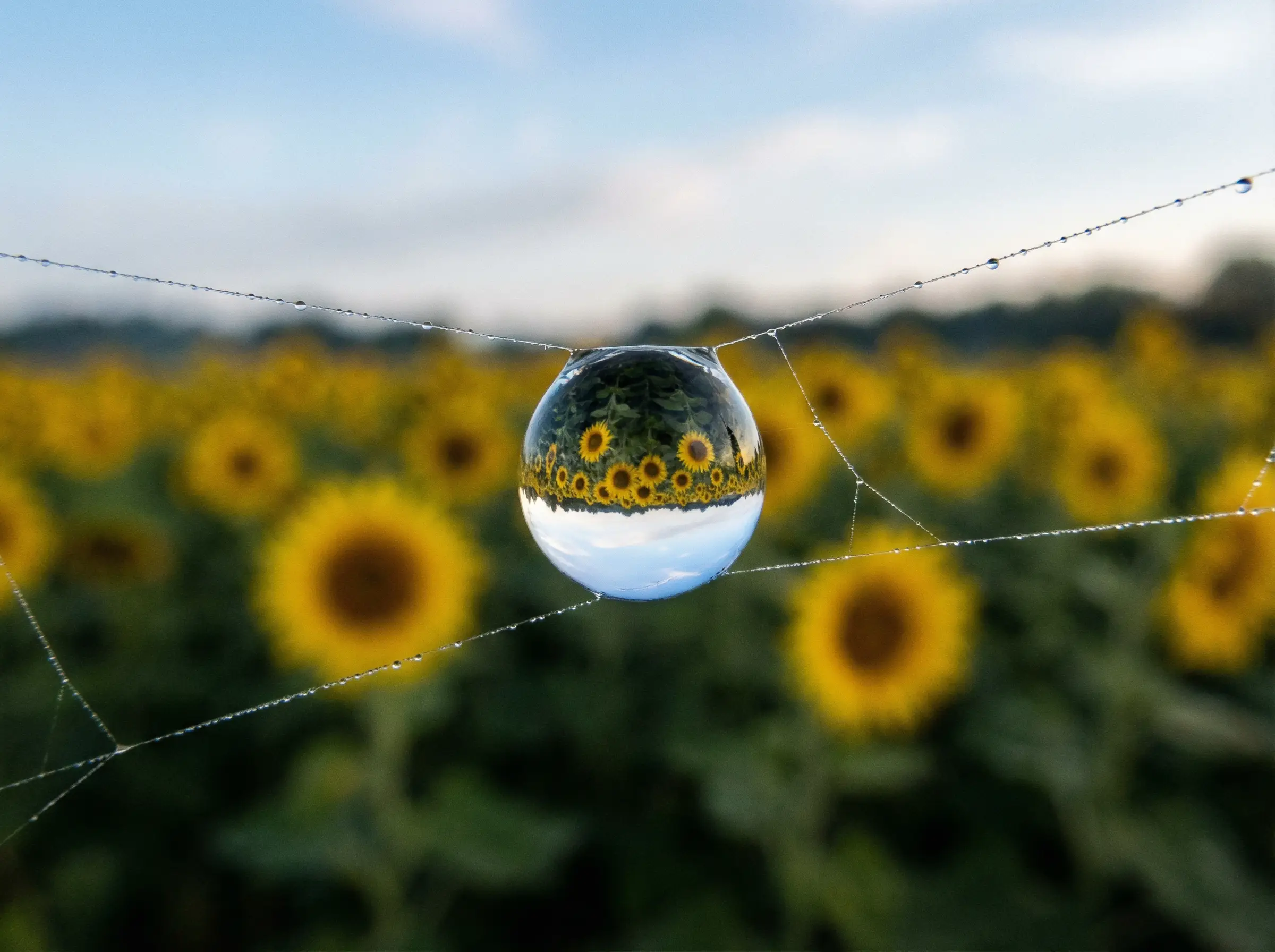 VISUAL INSPIRATION / LIGHT & DETAIL
xAI / GROK IMAGINE IMAGE
Create an image from a clear idea, or rework a reference you already have. Explore prompts, composition and image settings in one creative workspace.
A NEW WAY TO SEE IT
Give your idea a subject, a composition and a light source. Then refine what matters.
Sketch a campaign mood, product scene or editorial portrait with words. Keep the first prompt simple enough to see what works.
Choose a portrait, square or landscape frame. Leave room for the headline or caption you will add to your final layout.
Attach an existing image and describe one specific change. Review the result before introducing another adjustment.
Unify uses Grok Imagine Image Quality for this workspace. Start from a text prompt, or attach one image and describe the change you want to make.
These estimates cover one output image with the settings below. Check the cost shown in the workspace before generating; optional prompt enhancement may add a separate charge.
| Output | Text only | With one reference |
|---|---|---|
| 1k | 2 credits | 2 credits |
| 2k | 2 credits | 2 credits |
Generating an image uses credits. Your account balance and plan determine which credits are available. View plans and credits.
Use these as starting prompts for your own generations. They are not captions for tested example outputs.
Studio product photograph of one unbranded matte-sage water bottle on a pale stone block. Soft window light from the left, gentle shadow to the right, realistic surface texture. Bottle placed in the right half of the frame; empty cream background on the left for a headline added later. No lettering, watermark or extra objects.
Choose 16:9 and 1K for the first concept. Add final typography separately so spelling and layout remain under your control.
Editorial portrait of an adult with short curly hair wearing a plain navy jacket, framed from the chest up against a warm gray background. Soft side light, natural skin texture, relaxed expression, eyes looking at the camera. Balanced headroom and simple composition. No text, jewelry or additional people.
Choose 3:4 and 1K. Check eyes, ears and clothing details before choosing 2K for a new attempt.
Edit the attached product image: replace only the background with a plain warm-beige studio backdrop and a soft contact shadow. Preserve the product's shape, color, material, label and camera angle. Keep the product in the same position. Do not add objects or alter its visible details.
Attach one JPEG, PNG or WebP reference. Compare the product and any lettering against the original: a preservation instruction is not a guarantee of an exact match.
THE DETAILS
From your first idea to the final result.
The Grok image workspace on this page uses Grok Imagine Image Quality. You can start with a text prompt or attach one image and describe an edit.
Yes. Attach one JPEG, PNG or WebP and explain the change. Specify what should remain the same, then compare the result with your source. Exact product shapes, lettering and fine details still need review.
Start at 1K while exploring composition. Choose 2K when you want a new generation at a higher resolution. Switching resolution generates another image; it does not upscale the exact draft you already made.
Generations use Unify credits. Your balance and available account offers determine what you can generate. Check the workspace quote and current plans before submitting an image request.
YOUR NEXT IDEA STARTS HERE